
Save a card for automatic payments
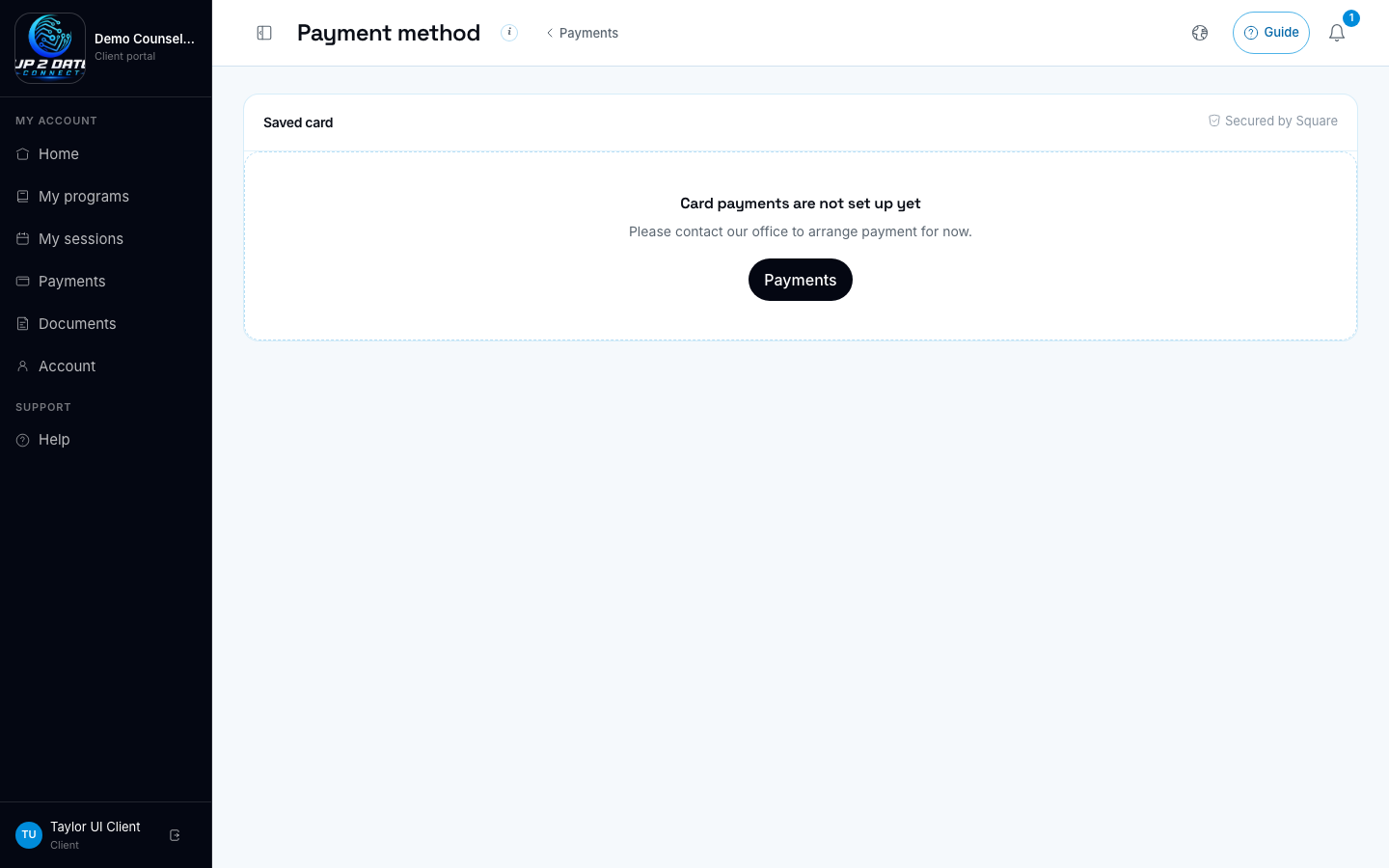
Add or manage a saved card.
What this is for
Section titled “What this is for”Your clinic can save a card on file so session and assessment fees can be charged automatically when the clinic turns that option on. The card is saved with that clinic’s Square account. The clinic never sees your full card number, and Up2Date Connect never stores it either. Square’s secure form holds the number; we only keep the brand, last four digits, and expiry.
Before you start
Section titled “Before you start”- You are signed in to the client portal for your clinic.
- The clinic has connected Square. If card payments are not set up yet, the page says so and asks you to contact the office.
- Open Payments.
- Under Payment method, choose Add card (or Manage if a card is already saved).
- Enter your card in the secure Square form.
- Read the consent text. It names your clinic and explains that the card may be charged for scheduled sessions and assessments, and that you can remove it anytime to stop automatic charges.
- Check the box to agree, then choose Save card.
What you see after
Section titled “What you see after”- The page shows the card brand and last four digits (for example Visa ···· 1111).
- On Payments, the summary says you have a card on file.
Remove a card
Section titled “Remove a card”- Open Payments → Manage, or go straight to the payment method page.
- Choose Remove.
- Confirm.
Automatic charges for you stop right away. You can still pay a bill by entering a card each time, or by another method the clinic offers (such as Cash App or Venmo when those tags are set).
Replace a card
Section titled “Replace a card”Choose Replace card, enter the new card, agree to the consent text again, and save. The old card is turned off.
- Use a card that will still be valid on your next session date.
- If saving fails, refresh and try again, or contact the office. The problem is often an incomplete consent checkbox or a clinic that is not connected to Square yet.
- Staff may save a card for you only after they record that you agreed by phone or in person (verbal consent). The same consent rules apply.
What happens next
Section titled “What happens next”If the clinic has automatic charging turned on, upcoming session and assessment fees can be charged to this card. You will still see bills and receipts on Payments. Removing the card is the fastest way to stop those automatic charges.